How Invoice OCR Works – If you’ve ever heard someone say their accounting software “reads invoices automatically,” they’re probably talking about OCR. But what actually happens between a scanned PDF and a row of structured data in QuickBooks? This guide explains it in plain English — no technical background needed.
What OCR actually means
OCR stands for optical character recognition. At its most basic, it’s software that looks at an image of text a scan, a photo, a PDF and figures out what letters and numbers are on the page, then turns them into machine-readable text you can search, copy, and process.
The original OCR technology from the 1970s and 80s worked by matching pixel patterns to known letter shapes. It worked well on clean, typed text in standard fonts, and poorly on everything else.
Modern invoice OCR is a different beast entirely. Today’s tools combine several layers of technology:
- Image pre-processing — straightening skewed scans, adjusting contrast, removing shadows
- Text recognition — identifying the characters on the page
- Document understanding — figuring out which text is a vendor name, which is a line item, which is a total
- Machine learning — improving over time as the model sees more examples
The last two layers are what separate a good invoice OCR tool from a basic PDF text extractor.
The difference between “reading text” and “extracting fields”
This is the most important distinction to understand when evaluating invoice OCR tools.
A basic OCR tool reads all the text on the page and gives you a wall of text. You can search it, copy-paste from it, and make it a “searchable PDF” — but you still have to manually identify which number is the total, which line is the vendor name, and so on.
A proper invoice OCR tool does field extraction: it doesn’t just read the text, it understands the structure of an invoice and maps the content to specific fields — vendor name, invoice number, date, line items, quantities, unit prices, tax, and total. That structured output is what goes directly into your accounting software without any manual entry.
Think of it this way: basic OCR gives you a transcript. Invoice OCR gives you a database record.
How a modern invoice OCR tool processes a document
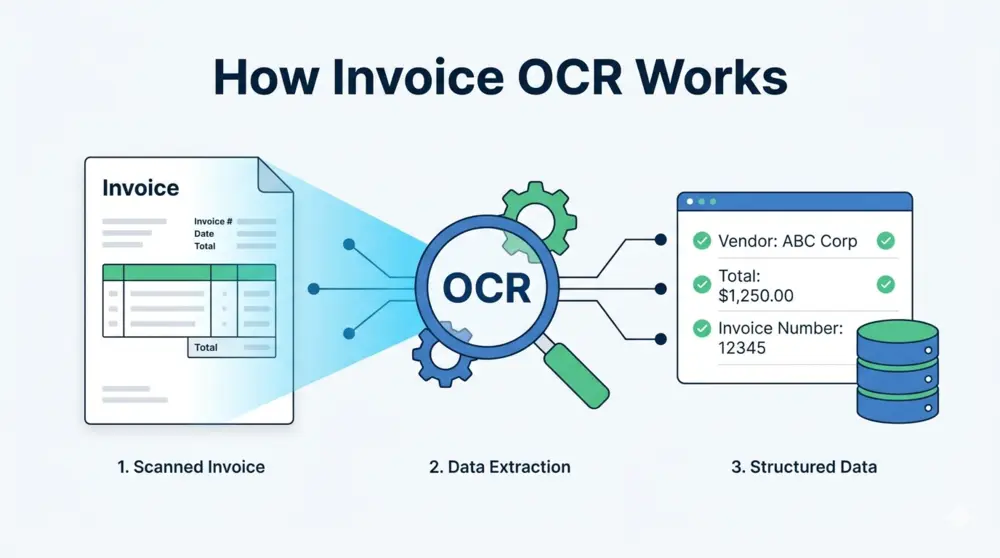
Here’s what happens, step by step, when you upload an invoice to a tool like Veryfi or Nanonets:
Step 1 — Image normalisation. The tool straightens the document if it’s crooked, adjusts brightness and contrast if it’s faded, and removes noise (specks, shadows, scanner artifacts). This preprocessing step has a big impact on accuracy for real-world documents.
Step 2 — Text detection. The tool identifies where on the page text exists, drawing invisible bounding boxes around each block of text, each line, and each word.
Step 3 — Character recognition. Within each bounding box, the model identifies the actual characters. Modern tools use neural networks trained on millions of document images, so they handle unusual fonts, slight blur, and even handwriting reasonably well.
Step 4 — Layout analysis. This is the smart part. The tool analyses the spatial layout of the document to understand its structure — identifying the header area (vendor info, logo), the line-item table (products, quantities, prices), and the footer area (subtotals, tax, total, payment terms).
Step 5 — Field mapping. Using the layout analysis, the tool maps extracted text to specific fields. “Vendor name” is likely in the top-left. “Invoice number” is usually near the top-right. “Total” is typically at the bottom-right, often larger or bolder than surrounding text.
Step 6 — Confidence scoring. Good tools assign a confidence score to each extracted field. High-confidence fields are accepted automatically; low-confidence fields are flagged for human review.
Step 7 — Output. The structured data is delivered as JSON (for API integrations), pushed directly to your accounting software, or exported as a CSV.
Why accuracy varies so much between tools
You’ll see accuracy claims ranging from 85% to 99% across different OCR tools. The gap is real, and it comes down to a few factors:
Training data. Models trained on millions of diverse real-world invoices will handle unusual layouts much better than models trained on a small, clean dataset. Enterprise tools like Rossum and Veryfi have processed enormous volumes of real invoices; newer or cheaper tools may not have that depth of training.
Document quality. Every tool performs better on clean digital PDFs than on scanned paper documents. The gap between tools widens on harder documents — faded receipts, handwritten annotations, low-resolution scans. This is exactly why we test with a mix of document types, not just clean PDFs.
Layout complexity. Standard A4 invoices from major accounting software (QuickBooks, Xero, FreshBooks) are well-represented in training data. Unusual layouts — custom invoice designs, multi-column formats, non-standard table structures — are harder for any tool to handle reliably.
Line items vs. totals. Extracting a grand total is much easier than extracting individual line items with their quantities and unit prices. A tool that claims “98% accuracy” may be measuring total extraction, while its line-item accuracy is considerably lower.
What “invoice OCR” can and can’t do
It can:
- Extract structured data from standard invoice formats reliably
- Handle PDFs, scanned images (JPG, PNG, TIFF), and mobile photos
- Learn your specific vendor formats over time (with AI-based tools)
- Integrate with QuickBooks, Xero, and other accounting software
- Process hundreds or thousands of invoices per month automatically
It can’t (reliably):
- Handle extremely poor quality scans (very dark, very light, severe skew)
- Read invoices in highly unusual or completely custom formats without training
- Replace human review for low-confidence extractions
- Understand context that isn’t on the page (e.g. which cost code a line item belongs to)
How line-item OCR works (and why it’s harder)
Line-item extraction — pulling out each individual product or service, its quantity, unit price, and total — is significantly harder than extracting header fields like vendor name and invoice total.
The challenge is that invoice line-item tables come in dozens of formats: different numbers of columns, different column orders, merged cells, descriptions that span multiple rows, part numbers alongside descriptions, and varying amounts of whitespace.
Good tools handle this by:
- Detecting the table structure (where the table starts and ends, how many columns it has)
- Identifying column headers (Description, Qty, Unit Price, Amount)
- Associating each row’s cells with the correct column
- Handling multi-line descriptions without splitting them across two line items
This is why line-item accuracy is the most important thing to test when evaluating invoice OCR tools for your specific use case — see our best invoice OCR software comparison for how the top tools perform on line-item extraction specifically.
Do you need invoice OCR?
A rough rule of thumb: if you’re processing more than 10–15 invoices a month and manually entering the data, OCR is likely worth the cost in time savings alone.
At 10 invoices a month, manual entry might take 20–30 minutes. At 100 invoices, you’re looking at 3–5 hours — time that could be spent on actual business work, and every hour of which introduces error risk.
Most tools offer free tiers or free trials, so you can validate whether the accuracy is acceptable for your specific invoice formats before committing.
Next steps
- Best invoice OCR software in 2026 — our full comparison of the top tools tested on real invoices
- Invoice OCR vs. manual data entry: which saves more time? — a cost-per-invoice breakdown
- Best free invoice OCR software for small businesses — what you actually get on free tiers